Theming
With inbuilt themes, you can customize the look of the card without doing any manual customization.
Use &theme=THEME_NAME parameter like so :
All inbuilt themes
Section titled “All inbuilt themes”GitHub Stats Extended comes with several built-in themes (e.g. dark, radical, merko, gruvbox, tokyonight, onedark, cobalt, synthwave, highcontrast, dracula).
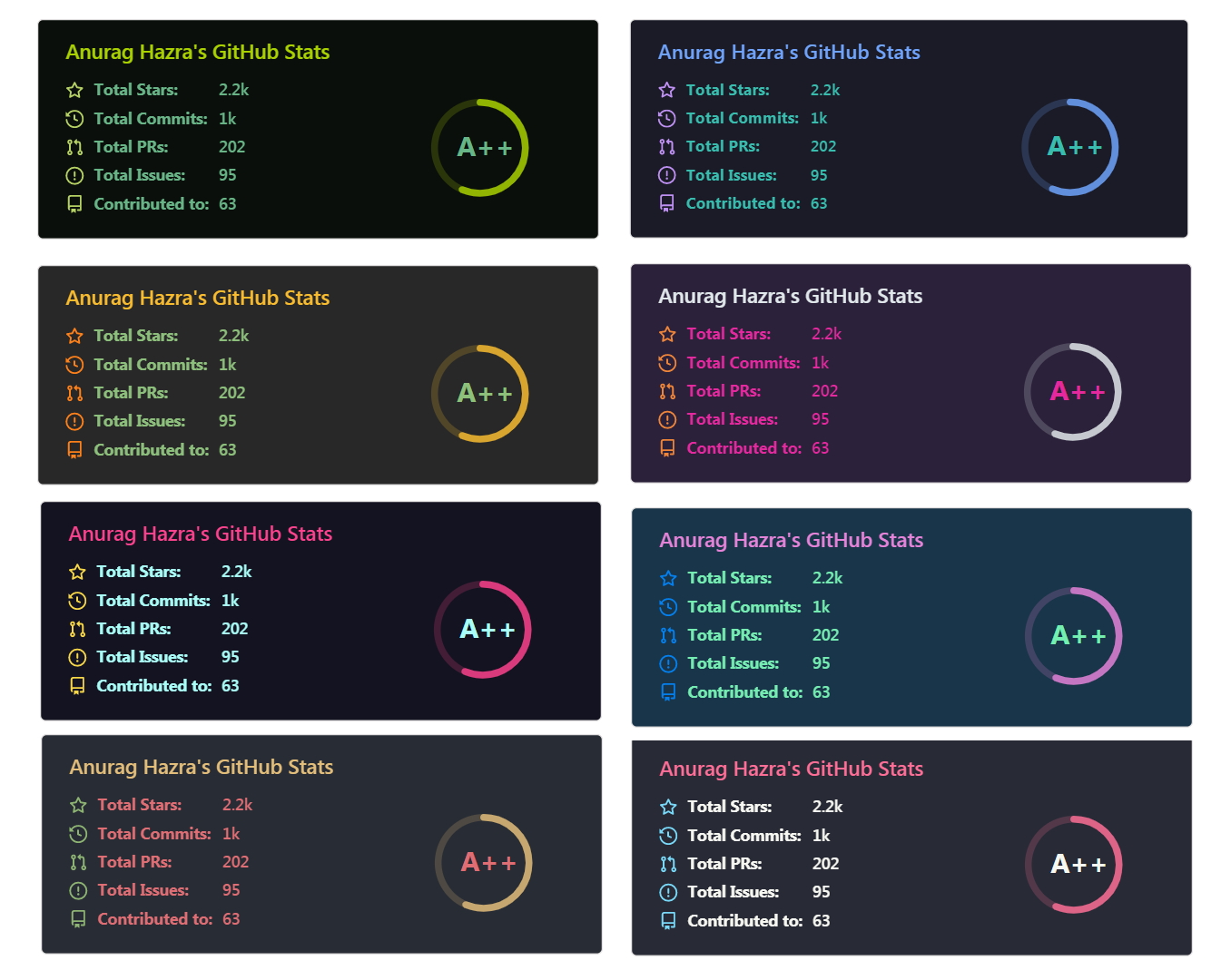
You can look at a preview for all available themes or checkout the theme config file. Please note that we paused the addition of new themes to decrease maintenance efforts; all pull requests related to new themes will be closed.
Responsive Card Theme
Section titled “Responsive Card Theme”Since GitHub will re-upload the cards and serve them from their CDN, we can not infer the browser/GitHub theme on the server side. There are, however, four methods you can use to create dynamics themes on the client side.
Use GitHub’s new media feature (recommended)
Section titled “Use GitHub’s new media feature (recommended)”You can use GitHub’s new media feature in HTML to specify whether to display images for light or dark themes. This is done using the HTML <picture> element in combination with the prefers-color-scheme media feature.
<picture> <source srcset="https://github-stats-extended.vercel.app/api?username=anuraghazra&show_icons=true&theme=dark" media="(prefers-color-scheme: dark)" /> <!-- light mode --> <img src="https://github-stats-extended.vercel.app/api?username=anuraghazra&show_icons=true" /></picture>For example the image at the top of the Responsive Card Theme section works like this - it follows the theme you set for this page.
Use GitHub’s theme context tag
Section titled “Use GitHub’s theme context tag”You can use GitHub’s theme context tags to switch the theme based on the user GitHub theme automatically. This is done by appending #gh-dark-mode-only or #gh-light-mode-only to the end of an image URL. This tag will define whether the image specified in the markdown is only shown to viewers using a light or a dark GitHub theme:
[](https://github.com/stats-organization/github-stats-extended#gh-dark-mode-only)[](https://github.com/stats-organization/github-stats-extended#gh-light-mode-only)For example the image at the top of the Responsive Card Theme section works like this - it follows the theme you set for this page.
Use the transparent theme
Section titled “Use the transparent theme”We have included a transparent theme that has a transparent background. This theme is optimized to look good on GitHub’s dark and light default themes. You can enable this theme using the &theme=transparent parameter like so:
👀 Show example
Add transparent alpha channel to a themes bg_color
Section titled “Add transparent alpha channel to a themes bg_color”You can use the bg_color parameter to make any of the available themes transparent. This is done by setting the bg_color to a color with a transparent alpha channel (i.e. bg_color=00000000):